
Platform
Solutions
Resources
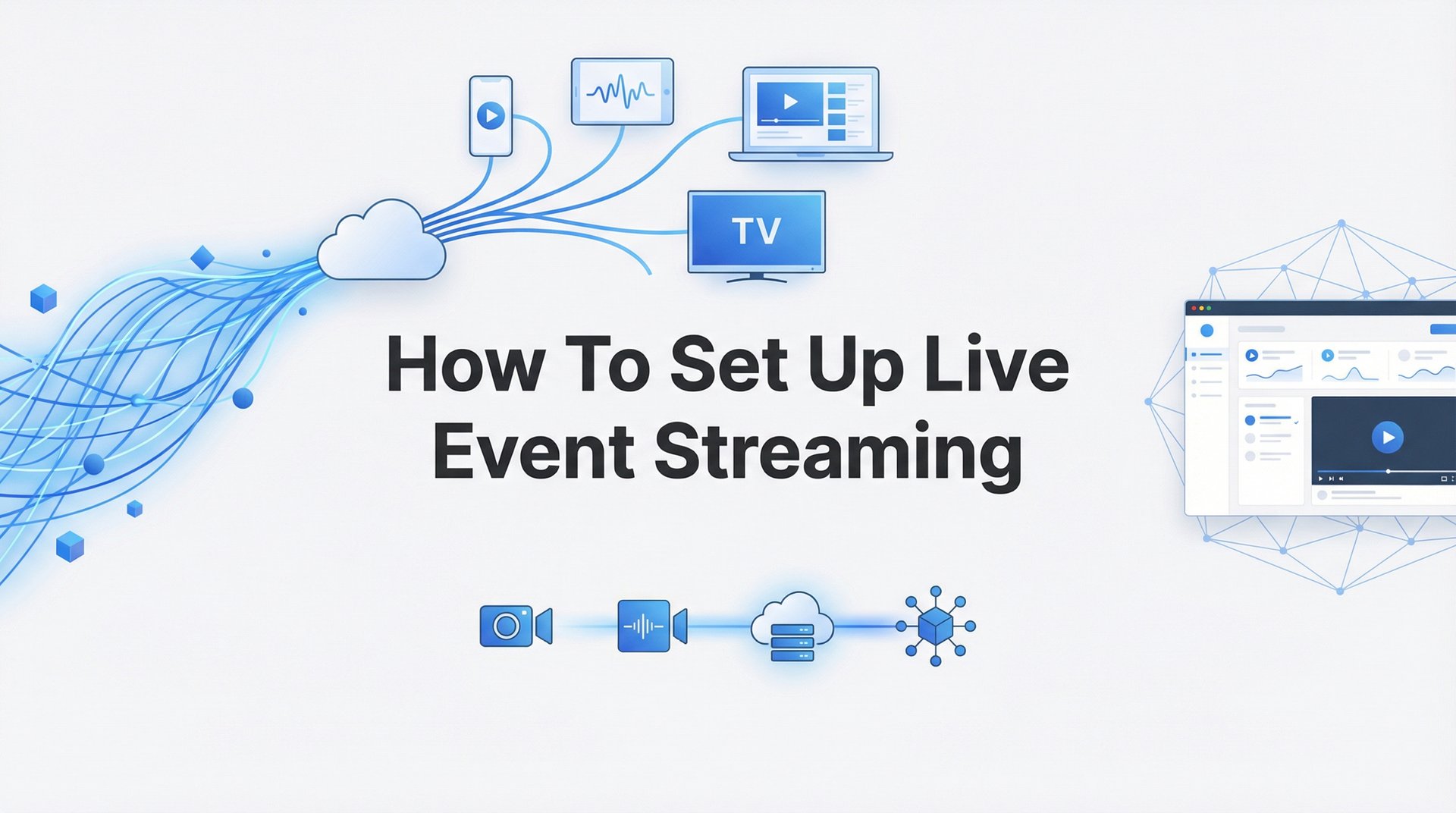
Whether you're broadcasting a Sunday service, streaming a championship game, or sharing a university lecture with remote students, live event streaming has become essential for reaching audiences beyond your physical walls. The good news? Setting up professional-quality live streaming doesn't require a film degree or a massive budget.
This guide walks you through everything from choosing the right equipment to going live with confidence. By the end, you'll have a clear roadmap for streaming your next event—whether it's your first broadcast or your hundredth.
Let's get your content in front of the audience it deserves.
Before you touch a single piece of equipment, you need clarity on who you're streaming for and why. This foundation shapes every decision that follows.
Start by identifying your specific audience. Are you reaching congregation members who can't attend in person? Students participating in remote learning? Fans following their team from across the country? Stakeholders attending a corporate event virtually? Each audience has different expectations and viewing habits.
Next, determine where your audience actually watches content. Think beyond just "online." Many viewers prefer watching on their smart TV apps rather than squinting at a phone or sitting at a computer. If your audience skews older, they're likely watching on Roku or Apple TV in their living room. Younger audiences might prefer mobile-first viewing. Understanding these preferences helps you choose the right distribution strategy.
Here's where platform strategy gets interesting. You can stream to a single platform like YouTube or Facebook, but you're playing by their rules and algorithms. Alternatively, multi-platform distribution lets you reach viewers on Roku, Apple TV, Amazon Fire TV, and mobile devices simultaneously—all under your brand, with your control.
Quality expectations vary by content type. A weekly worship service needs reliable, clear audio and stable video, but doesn't necessarily require cinematic production value. Sports broadcasts, on the other hand, benefit from higher frame rates to capture fast action smoothly. A university lecture prioritizes screen sharing and speaker clarity over visual flair.
Your success indicator for this step: You can clearly articulate who watches, where they watch, and why they tune in. Write it down. This clarity prevents you from wasting money on unnecessary equipment or choosing platforms that don't match your audience's behavior.
This planning phase also helps you set realistic expectations. If you're streaming to 50 people, you need different infrastructure than if you're targeting 5,000. Start with your current needs but build a foundation that can scale as your audience grows.
Let's talk gear. The equipment you need depends on your budget and quality goals, but certain fundamentals apply across the board.
Camera Selection: For simple setups like single-speaker presentations, a quality webcam (Logitech C920 or similar) gets the job done. Mid-range productions benefit from camcorders with HDMI output, giving you better image quality and manual controls. Professional broadcasts—especially multi-camera sports or large venue events—often use PTZ (pan-tilt-zoom) cameras that can be remotely controlled, eliminating the need for dedicated camera operators.
Audio Gear (Non-Negotiable): Here's the truth: viewers will tolerate imperfect video, but bad audio kills engagement instantly. Built-in camera microphones don't cut it. Invest in external microphones appropriate to your setup. Lavalier mics work beautifully for single speakers. Shotgun mics capture audio from a distance for panel discussions. For complex events with multiple audio sources, a mixer lets you balance levels from microphones, instruments, and playback sources.
Encoding Hardware: You need something to convert your camera signal into a format suitable for streaming. Software encoders run on your computer (we'll cover those in Step 4), but dedicated hardware encoders like Teradek or Magewell devices offload processing from your computer, improving reliability for critical broadcasts. For specific recommendations, check out what Lightcast recommends for live encoders.
Lighting Basics: Natural lighting is unpredictable. Basic three-point lighting—a key light, fill light, and backlight—makes subjects look professional and ensures consistent quality regardless of time of day. LED panel lights are affordable and don't generate excessive heat.
Internet Requirements: This is where many first-time streamers stumble. You need a wired ethernet connection with upload speed of at least 10 Mbps for stable 1080p streaming. WiFi introduces latency, interference, and reliability issues that can tank your broadcast mid-event. Test your upload speed at the exact location you'll be streaming from—download speed doesn't matter here, only upload.
Common pitfall: Buying expensive cameras while relying on WiFi and built-in audio. Prioritize a wired internet connection and quality audio over camera upgrades. Your audience notices poor audio and buffering far more than the difference between a $300 and $3,000 camera.
Start with the essentials and upgrade incrementally. Many organizations successfully stream with modest equipment because they nail the fundamentals: stable internet, clear audio, and adequate lighting.
Platform selection shapes your entire streaming experience, so let's break down your options clearly.
Social Media Platforms: Facebook Live, YouTube Live, and similar services offer easy entry points. They're free, your audience already has accounts, and setup is straightforward. The trade-off? You're building on rented land. Algorithm changes control who sees your content. Monetization options heavily favor the platform. Your content sits alongside cat videos and conspiracy theories. For casual streaming, they work fine. For organizations building serious audience relationships, the limitations become frustrating.
OTT (Over-The-Top) Platforms: This approach gives you brand control and professional distribution. Your content lives in your branded apps on Roku, Apple TV, Fire TV, and mobile devices. Viewers find you in app stores, not buried in social feeds. You control the viewing experience, own the audience relationship, and keep more of any revenue you generate. Understanding how OTT platforms are transforming live event streaming can help you make an informed decision.
Here's what makes this interesting: platforms designed for content creators handle the technical complexity of multi-destination streaming for you. Instead of manually configuring streams to each device type, you upload once and distribute everywhere with a single button.
Content Management Considerations: Will you archive streams for on-demand viewing? Build a searchable content library? Organize by series, topic, or date? Some platforms treat streaming as a one-time broadcast and then forget about it. Others centralize all your content in an AI-equipped management system that makes organizing and promoting your library effortless. Exploring Apple TV publishers content management systems can give you insight into what robust content organization looks like.
Monetization Models: If you plan to generate revenue, understand the terms. Social platforms take significant cuts and control ad placement. Many OTT platforms offer fairer revenue shares—some as high as 80-90% going to the creator rather than 55% or less on social platforms. Options include ad-supported streaming, subscription models, or pay-per-view for special events.
Think about your long-term vision. If you're building a content library and want viewers to find you on their preferred devices without platform algorithms deciding who sees what, an OTT approach makes sense. If you're just testing the waters with occasional streams, starting with social platforms while planning for eventual migration works too.
Success indicator: You've selected a platform that matches your distribution goals, gives you adequate control over your content, and offers monetization terms that align with your revenue expectations.
Now we get technical—but don't worry, this is more straightforward than it sounds.
Software Options: OBS Studio is free, open-source, and surprisingly powerful. It handles everything from basic single-camera streams to complex multi-source productions. vMix and Wirecast offer more polished interfaces and advanced features for professional productions. Some platforms provide native streaming tools that simplify the entire process by integrating encoding and distribution in one interface. Understanding why your streaming software matters helps you make the right choice for your needs.
Connecting to Your Platform: Every streaming platform provides an RTMP URL and stream key—think of these as the address and password for your broadcast. You'll find them in your platform's streaming settings. Copy the RTMP URL into your encoder's "Server" field and the stream key into the "Stream Key" field. This tells your encoder where to send the video signal.
Optimal Encoding Settings: For most events, stream at 1080p resolution and 30 frames per second. This balances quality with bandwidth requirements. Sports broadcasts benefit from 60fps to capture fast motion smoothly, but this doubles your bandwidth needs. Set your bitrate between 4,500-6,000 kbps for 1080p—this determines video quality and file size. Higher bitrate means better quality but requires faster internet and uses more viewer bandwidth.
Creating Scenes: Scenes let you switch between different visual layouts. Create a "Main Camera" scene, a "Presentation Slides" scene if you're sharing screens, and perhaps a "Starting Soon" scene with your logo and countdown timer. You can switch between these during your broadcast to keep things visually interesting.
Graphics and Overlays: Add lower-third graphics with speaker names, event titles in the corner, or social media handles. Keep these subtle—they should enhance, not distract from, your content.
Common pitfall: Not testing your encoder settings before going live. What looks perfect on your production monitor might stream pixelated or choppy if your settings don't match your internet capabilities. Always run test streams to verify your configuration works in real-world conditions.
Document your settings once you find a configuration that works. Screenshot your encoder settings, write down your bitrate and resolution, note which scenes you created. This becomes your template for future streams, saving setup time and reducing the chance of configuration errors when you're under time pressure.
This step separates smooth broadcasts from disaster scenarios. Never skip the technical rehearsal.
Test your entire signal chain from start to finish: camera feeds into encoder, encoder streams to platform, platform delivers to viewer devices. Don't assume anything works until you've verified it with your own eyes and ears.
Audio Verification: Audio sync issues are common and frustrating. Record a test where someone claps on camera—the visual and audio should align perfectly. If you notice drift over time, you have a frame rate mismatch somewhere in your chain. Check that all your equipment is set to the same frame rate (either all 30fps or all 60fps). Test audio levels across different scenarios—speaking normally, speaking loudly, background music if applicable. Set levels so peaks hit around -6dB, leaving headroom for unexpected volume spikes.
Multi-Device Testing: Watch your test stream on the actual devices your audience uses. Pull it up on a smart TV, check it on a phone, view it on a tablet. Sometimes streams look perfect on your production monitor but have issues on viewer devices. Color accuracy, aspect ratio, and buffering behavior can vary significantly across platforms.
Backup Internet Connection: If you have a secondary internet source—a different ISP, a mobile hotspot, even a neighbor's WiFi in emergencies—configure it as a backup. Some encoding software supports automatic failover if your primary connection drops. At minimum, know how to quickly switch if needed.
Documentation and Checklists: Create a troubleshooting guide while everything is fresh in your mind. What do you do if audio cuts out? If the stream drops? If a camera fails? Having written procedures prevents panic during live events. Your future self will thank you when something goes wrong and you have a clear action plan instead of scrambling to remember solutions.
Success indicator: Complete a 15-minute test stream with no audio/video sync issues, no buffering, and verification that the stream appears correctly on all target devices. If you can't achieve this in testing, you definitely won't achieve it during your actual event.
Schedule your rehearsal at least 24 hours before your event, not 30 minutes before. This gives you time to fix problems without the pressure of an imminent broadcast.
Event day has arrived. Here's how to execute a smooth broadcast.
Start streaming 5-10 minutes before your event officially begins. Display a holding slate with your logo and event title, or run a countdown timer. This gives early arrivers something to watch and lets you verify the stream is live and stable before content begins. It also provides a buffer if you need to troubleshoot last-minute issues.
Stream Health Monitoring: Keep your encoder visible throughout the broadcast. Watch for dropped frames (indicates your internet can't keep up), bitrate fluctuations (suggests connection instability), and viewer count (confirms people are actually receiving your stream). Most encoding software displays these metrics in real-time. If you see consistent dropped frames, you may need to lower your bitrate mid-stream to maintain stability.
Dedicated Viewer Monitor: Have a second person watch the live output on an actual viewer device—not your production monitor. They're seeing exactly what your audience sees, including any delays, buffering, or quality issues you might miss while focused on production. This person can text you alerts if problems arise, giving you a chance to fix issues before they ruin the experience.
Team Communication: If you're running a multi-camera production, keep communication open between camera operators and the stream technician. A simple group text or walkie-talkie system lets you coordinate camera switches, alert operators to framing issues, or communicate technical problems without disrupting the event.
Emergency Procedures: Know your plan if the stream drops. Can you restart quickly? Should you switch to a backup internet connection? Do you have a "Technical Difficulties" slate ready to display? Make these decisions in advance, not while panicking during a live event. Sometimes the best move is to briefly pause, fix the issue properly, and restart rather than broadcasting a degraded experience.
If your platform supports live chat or comments, engage with your audience when appropriate. Acknowledge viewers joining from different locations, answer quick questions during breaks, or simply welcome people. This interaction builds community and makes the streaming experience feel more connected than passive viewing.
Stay calm. Technical issues happen to everyone, from beginners to professionals. Your audience is generally forgiving if you handle problems gracefully and communicate clearly.
Your work isn't done when the stream ends. The post-broadcast phase builds long-term value.
Save and Organize: Immediately save your stream recording to your content management system. Add a clear title, detailed description, and eye-catching thumbnail. Organize content logically—by date, series, topic, speaker, or whatever taxonomy makes sense for your audience. A well-organized library becomes increasingly valuable as you build a content archive. Platforms that offer the easiest publish workflow make this effortless rather than a manual chore.
Clip Highlights: Not everyone can watch a full two-hour stream. Create 60-90 second highlight clips showcasing the most compelling moments. These work perfectly for social media promotion, email newsletters, or teasers for upcoming events. A great highlight reel drives viewers to your full archive and builds anticipation for future streams.
Analytics Review: Dive into your streaming analytics. When did viewership peak? Where did people drop off? How long did the average viewer watch? These insights reveal what resonates with your audience. If you notice consistent drop-off at the 30-minute mark, maybe your events run too long. If peak viewership happens 10 minutes after your scheduled start, perhaps you should adjust your promotion timing.
Continuous Improvement: Use each broadcast as a learning opportunity. What technical issues arose? How was the audio quality? Did lighting work well? Were camera angles effective? Keep a production journal noting what worked and what needs adjustment. Small incremental improvements compound over time into significantly better broadcasts.
Audience Growth Strategy: Consider expanding beyond basic streaming to branded apps that give viewers a dedicated destination for your content. When your organization has its own app on Roku, Apple TV, and mobile devices, you're building a direct relationship with your audience rather than competing for attention in crowded social feeds. Churches, in particular, have found success with strategic streaming distribution approaches that maximize their reach.
The beauty of a strong content library is that it works for you 24/7. New viewers can discover your archive, binge past episodes, and become invested in your organization before ever attending a live event. This compounds the value of every stream you produce.
You now have a complete roadmap for setting up live event streaming—from defining your goals to growing your audience after the broadcast ends.
Quick checklist before your next stream: ✓ Goals and audience defined ✓ Equipment tested and ready ✓ Platform configured for multi-device distribution ✓ Encoder settings optimized ✓ Technical rehearsal completed ✓ Monitoring plan in place ✓ Archive and repurposing strategy ready.
The best part? Once you've built this foundation, each subsequent stream gets easier. You've documented your settings, refined your processes, and learned from experience. What felt overwhelming initially becomes routine.
Platforms like Lightcast are designed to simplify this entire process, especially for organizations that want to distribute across smart TV platforms without the technical headaches. With 15 years of OTT streaming experience and over 15,000 apps published, solutions exist that centralize content management, handle multi-platform distribution with one button, and offer fair monetization terms that respect your work.
Ready to reach your audience wherever they watch? Start with step one, and you'll be streaming like a pro in no time. Learn more about our services and discover how the right platform can transform your streaming capabilities from complicated to effortless.
